Sync FTP Storage to AWS S3 with Cloud Integration
Published {$created} by Carsten Blum
Modern applications often use object storage platforms like AWS S3, while many existing systems still rely on FTP, SFTP, FTPS, or SCP.
ftpGrid's new Cloud Integration feature bridges this gap.

With Cloud Integration you can automatically synchronize files between ftpGrid and external cloud storage providers, including:
AWS S3
S3 compatible providers (Cloudflare R2, OVH, MinIO, etc.)
Azure Blob Storage
This makes ftpGrid a powerful bridge between legacy file transfer protocols and modern cloud storage infrastructure.
What ftpGrid Cloud Integration Can Do
Cloud Integration supports four synchronization modes:
Copy from ftpGrid → external cloud
Files uploaded via FTP/SFTP will automatically be copied to your S3 bucket.
No files are deleted.
Copy from external cloud → ftpGrid
S3 => ftpGrid
Files uploaded to S3 will be synchronized into your ftpGrid storage.
Mirror ftpGrid → external cloud
ftpGrid => S3 (mirror)
Files removed from ftpGrid will also be deleted from S3.
This keeps both systems fully synchronized.
Mirror external cloud → ftpGrid
S3 => ftpGrid (mirror)
The ftpGrid storage becomes an exact mirror of the S3 bucket.
Why Use ftpGrid as an S3 Bridge?
Many systems still generate files using FTP or SFTP uploads, including:
surveillance cameras
IoT devices
legacy applications
backup systems
automated scripts
ERP and reporting systems
These systems often cannot upload directly to S3.
Cloud Integration solves this by allowing:
Device → FTP/SFTP → ftpGrid → S3Typical example:
cameras upload recordings via FTP
ftpGrid receives files
files automatically sync to S3
This removes the need for custom middleware or scripts.
Step-by-Step: Connect ftpGrid to AWS S3
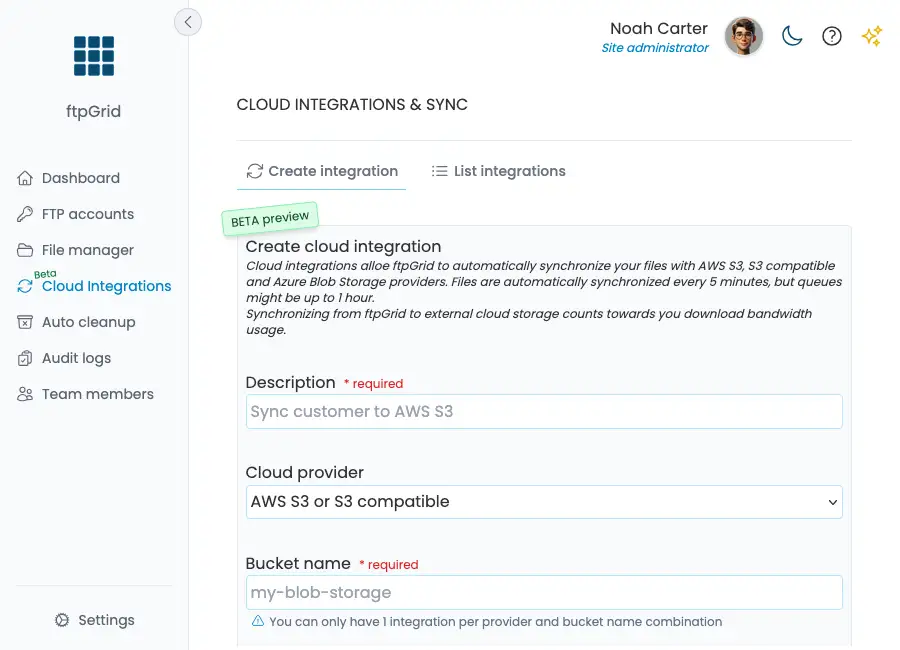
Step 1 – Open Cloud Integrations
Log in to your ftpGrid dashboard. Navigate to:
Cloud Integrations → Create integration
Step 2 – Add Description
Enter a descriptive name for the integration.
Example:
Sync camera storage to AWS S3
This helps identify integrations if you create multiple.
Step 3 – Select Cloud Provider
Choose:
AWS S3 or S3 compatible
This option works with:
AWS S3
Cloudflare R2
OVH Object Storage
MinIO
Wasabi
Backblaze B2 (S3 mode)
Step 4 – Configure the S3 Bucket
Enter the name of your bucket. Example:
my-ftpgrid-backups
You may also specify a remote path inside the bucket. Example:
customer-exports/
If left blank, ftpGrid will sync with the root of the bucket.
Step 5 – Choose the ftpGrid Path
Define which directory inside ftpGrid should be synchronized. Example:
customer/abc
The integration will include all subdirectories.
Common examples:
/uploads/cameras
/uploads/backups
/uploads/exports
Step 6 – Choose Sync Mode
Select how files should be synchronized.
Options include:
Copy ftpGrid → S3
Copy S3 → ftpGrid
Mirror ftpGrid → S3
Mirror S3 → ftpGrid
Most users choose:
Copy ftpGrid → external cloud
This ensures files uploaded via FTP are automatically stored in S3.
Step 7 – Enter AWS Credentials
Enter your AWS credentials.
Access Key example:
ABC123...
Secret Key example:
123ABC...
Region example:
eu-west-1
If you are using an S3 compatible provider, you must also enter the endpoint.
Example:
https://s3.eu-west-1.io.cloud.ovh.net/
Step 8 – Test the Integration
Click:
Test integration
ftpGrid will verify:
credentials
bucket access
connectivity
Please note: ftpGrid performs the test by creating a file on the remote storage, and must have both read and write access to the bucket path.
If successful, enable the integration.
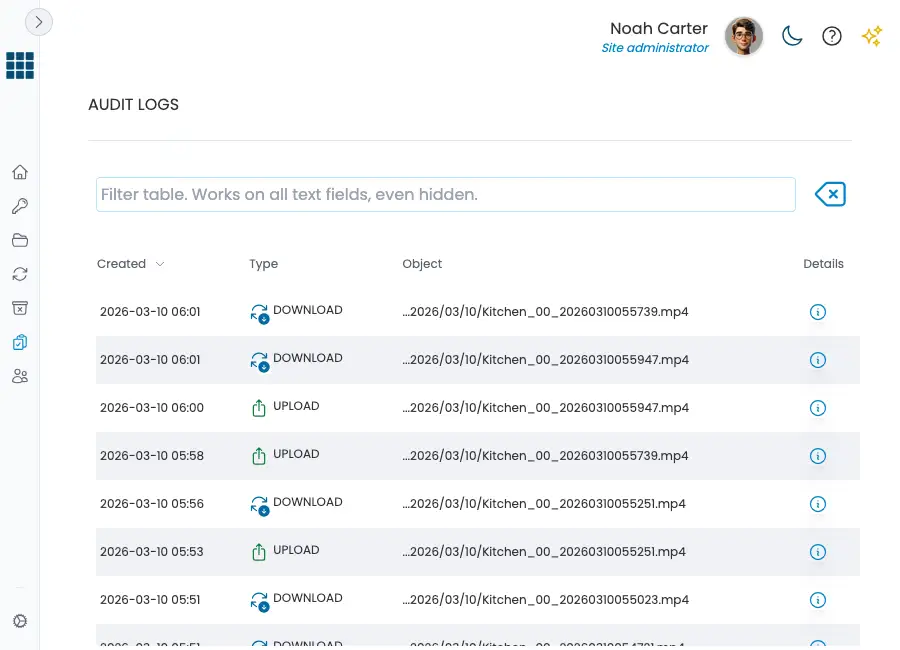
Step 9 – Review integration
Wait a couple of hours, or even days, and review how your integrations are performing. On the Cloud integrations list page you'll se statistics for your integrations like files and bytes transferred.
On the Audit log you can see each operation performed by the integration.
How the Sync Process Works
Once enabled, ftpGrid automatically scans the configured directory and synchronizes files. The scan is performed at fixed 5min intervals, but might be delayed if there is a long synchronization queue.
Large datasets may take a long time to synchronize initially, and larger datasets (100Gb+) will be chunked into 30min timeslots. This is done to provide fair bandwidth to all users on a specific Edge node.
Example Architecture
A common real-world setup:
Security Cameras
↓
Upload via FTP
↓
ftpGrid Storage
↓
Automatic Sync
↓
AWS S3 Bucket
Benefits:
cameras remain simple
no S3 SDK required
automatic redundancy
When Should You Use Mirroring?
Mirroring is useful when you want exact synchronization between ftpGrid and S3. Example:
Mirror ftpGrid → S3
If a file is removed from ftpGrid, it will also be removed from S3.
Useful for:
temporary data
log pipelines
export directories
Security and Credentials
All credentials stored in ftpGrid are:
encrypted using AES-256
stored following the principle of least privilege
Credentials cannot be retrieved once saved, and cannot be decrypted by ftpGrid.
Related Guides
ftpGrid cloud storage overview https://ftpgrid.com/ftp-cloud-storage/
Camera cloud storage https://ftpgrid.com/video-surveillance-cloud-storage/
Quick start guide https://ftpgrid.com/ftp-sftp-cloud-storage-quick-start/
Final Thoughts
Cloud Integration turns ftpGrid into a powerful bridge between FTP infrastructure and modern cloud object storage.
Instead of rewriting applications or deploying middleware, you can simply connect ftpGrid and let synchronization happen automatically.
Create your free account and try it today.